
How To Use Lessonface
We want Lessonface to be easy to use so we set it up to be as intuitive and easy-to-use as possible. In a few short steps, you'll be on your way to connecting with a top music teacher.
Need help? Chat with us at any time using the blue box at the bottom right corner of the page or call us at 1-800-211-7058.
Step 1 - set up your account
Click on the green sign-up button at the top-right of the Lessonface website & enter your email address
You must be 13 years old or over to set up a Lessonface account. Under 13? Ask your parent or guardian to set up a parent profile for you.

Enter your name and choose a username & password.
You can use your email address as your username if you would like.
Select if you are a student, a parent (if you will be managing accounts for any child/ren), or a teacher (to submit an application to teach on Lessonface) and your time zone.

Step 2 - Find your teacher
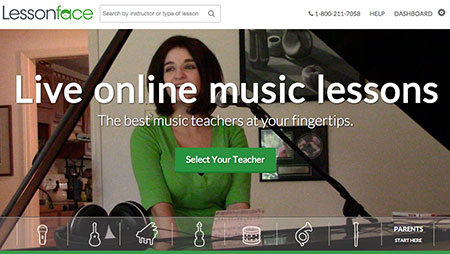
From the Lessonface homepage, click on the "Select Your Teacher" button or enter an instrument or teacher's name in the search bar.
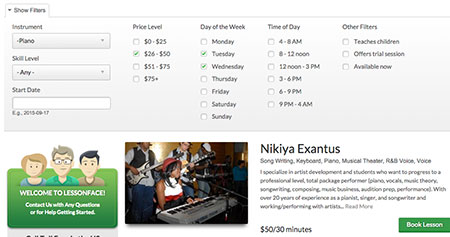
Use the toolbar at the top of the page to filter for teachers; click on a teacher that you want to learn more about (this will take you to the teacher's instructor booking page).
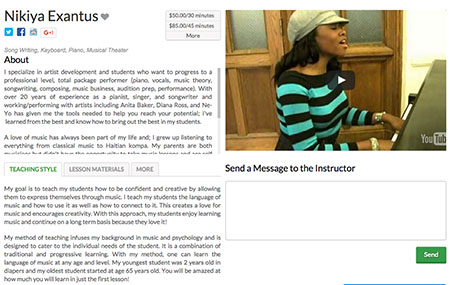
If you want to contact a teacher, you can send a message using the message box on the right side of the booking page.
3. Book a lesson
Once you've found the teacher that's right for you, scroll down to the calendar at the bottom of the booking page. Click the green box for the date and time when you'd like to have your lesson.
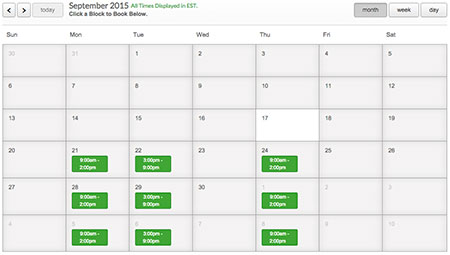
Select the lesson type, duration, and time and click the book button.
(if you're a parent that manages accounts for any kids, you can select the child for whom you want to book a lesson)
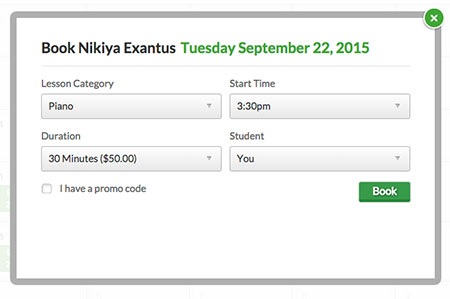
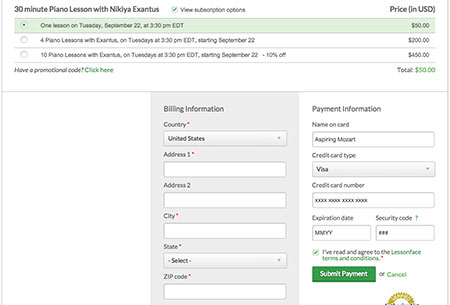
Select the number of lessons you'd like to book and enter your payment information.
You'll receive an email confirming your lesson; 24 hours before your lesson you'll receive a second email with instructions for accessing your lesson.
4. See upcoming lessons and use your Lessonface dashboard
Go to your Lessonface Dashboard (log-in or click on the gear in the top-right corner).
(click on the "View All" button in the Lessons column to see your upcoming lessons)
You can start a lesson by click on the green "start lesson" button on the lessons page of your dashboard.
(this button becomes available 15 minutes before the start of your lesson)
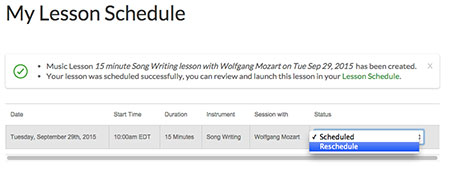
If you need to reschedule a lesson, click on the drop down arrow in the Status column and select "Reschedule."
Questions?
Talk to a live staff member of Lessonface using any of these channels:
- Chat us using the blue block in the bottom right corner
- Email us at [email protected]
- Call us at 1-800-211-7058

Start Lessons
Search for your perfect music, language, or arts teacher and start working towards your learning goals.
Start with a Free Trial
Teachers on Lessonface set their own rates and discounts. Participating teachers offer free trials.
Great Teachers, Great Lessons, Guaranteed
Learn more about the greatest universe for online music and arts lessons.

Lessonface Recitals, Open Mics, Masterclasses, and Jams
Welcome students of all ages and skill levels!