
How to Bring Students to Lessonface
Recruit your own students to Lessonface, take advantage of our lessons ecosystem, and build up your site stats for a nominal fee - as low as we can make it without losing money. Lessonface's fee is a small portion of students' tuition, which aligns our mutual goals for more bookings.
Students who register for Lessonface following a teacher's link or invitation are marked in our platform as the teacher's referral. The teacher's share of tuition is even higher for their referrals. View the details about our fees, which range from 5% for private lessons with students referred by the teacher, to 30% for Lessonface's referrals to your self-paced courses, classes, and downloadables.
There are three main ways to bring your students to Lessonface:
- Share your unique referral links.
- Send students lesson invitations by email using the "Create Lesson" button.
- Embed a widget on your website.
Either method will mark a student who registers for Lessonface following your outreach as your referral. You can check the referral status of a student on their contact page.
Method 1: Your Unique Referral Links
Recruit students by sharing the link from the Outreach section of your dashboard. The default referral link for teachers is Lessonface.com/firstnamelastname, which will take students directly to your profile page for booking private lessons with you.
You can customize the link, and create new ones, from your Outreach page.
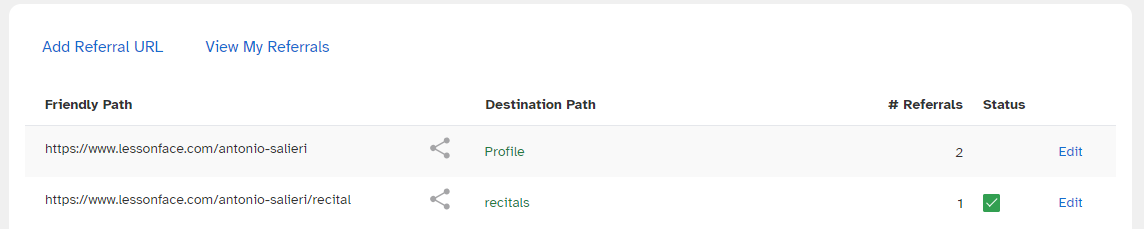
You can create additional links to other site pages, including your group classes and self-paced courses, from your Outreach page, or by utilizing the "Create Referral Link" icon in the green left-hand column. When students follow your link(s) to register, they will be marked as your referral for all future bookings!
Method 2: Sending a Lesson Invitation
If you are bringing students for private lessons, you may find it easier to send the student a lesson invitation by email. This enables you to set a date, time, lesson topic, and lesson duration for the student. They just have to confirm (and pay, if it's a paid lesson).
If you're using a bigger screen, you can create a lesson invitation from this button on the green sidebar:

If you're on your phone, you can use the prominent plus sign at the bottom of the dashboard to send a lesson invitation.
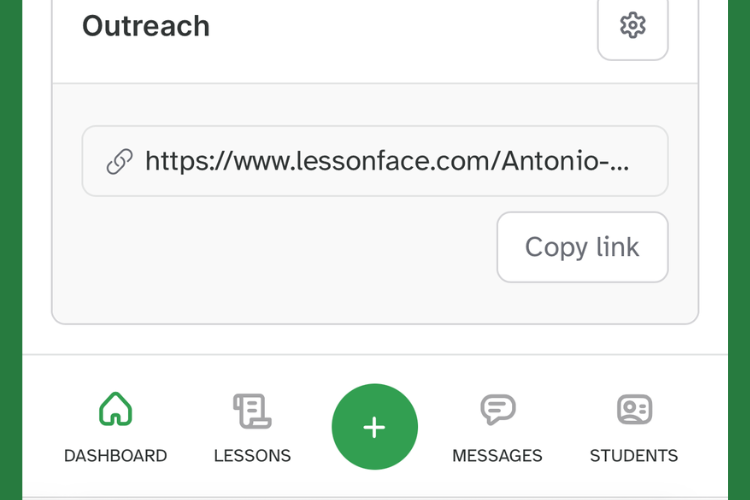
Follow the prompts and your students will be booking with you in no time!
Method 3: Embed a Sharing Widget
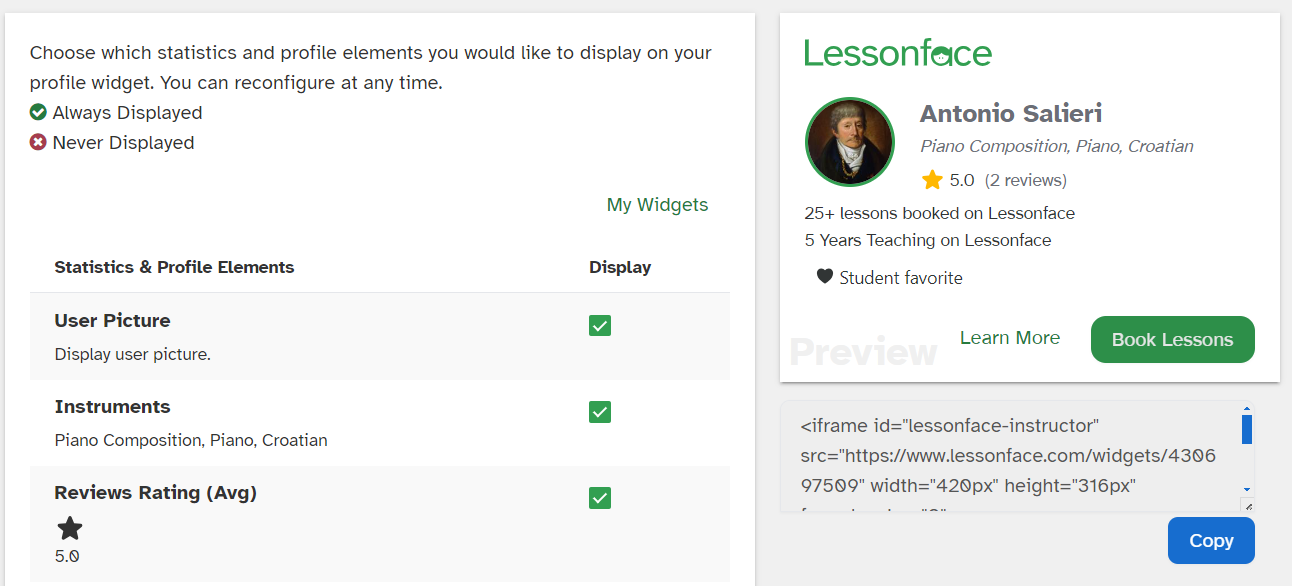
Lessonface enables you to customize a widget you can embed on your website, showing your stats and responsiveness. To view and start customizing, navigate to the green menu > Profile > Create Sharing Widget. You'll see a table of options that you can choose to include, or not. Copy the iFrame code and embed it on your website, and your referral link will be included automatically.
Viewing the Source of Your Lessonface Contacts
To view the referral source of your student contacts on Lessonface, you will need to be in Lessonface Beta. You can check if you are in Beta by clicking 'Beta' at the bottom left-hand green menu.
Once you have Beta turned on, navigate to your student contacts. On each student contact, you will see referral information. Three possible referral sources may be shown: Lessonface, Lessonface Community (representing that someone in the Community helped get you the student, and will be earning the Community Share on this student's bookings) and Self, meaning activities with the student will be at the lower self-referral fees.
Looking for more information?
• About Teaching at Lessonface
• Teacher Fees
• How to Activate Your Teaching Profile
• Take the Teacher Orientation Course
• Teacher FAQ
• Contact us directly

Start Lessons
Search for your perfect music, language, or arts teacher and start working towards your learning goals.
Start with a Free Trial
Teachers on Lessonface set their own rates and discounts. Participating teachers offer free trials.

Great Teachers, Great Lessons, Guaranteed
Learn more about the greatest universe for online music and arts lessons.

Lessonface Recitals, Open Mics, Masterclasses, and Jams
Welcome students of all ages and skill levels!